Procore: New Permissions Experience
Context
Procore’s Permissions tool is where users can create and manage permissions templates and then assign those templates to other users in their company account. The tool was in need of a refresh, which aimed to enhance the user experience with a more modernized interface while maintaining the functionality our users rely on to manage their permissions.
My Role
This was a new interface being introduced to existing users who were familiar with the old permissions tool, so it was important that the new experience felt intuitive to all users and that it was easy for them to understand what would happen as a result of making any changes.
I worked with the product designer to understand each of the UI paths and designed all interface copy in the new experience, including empty states, confirmation modals, button copy, labels, and toasts.
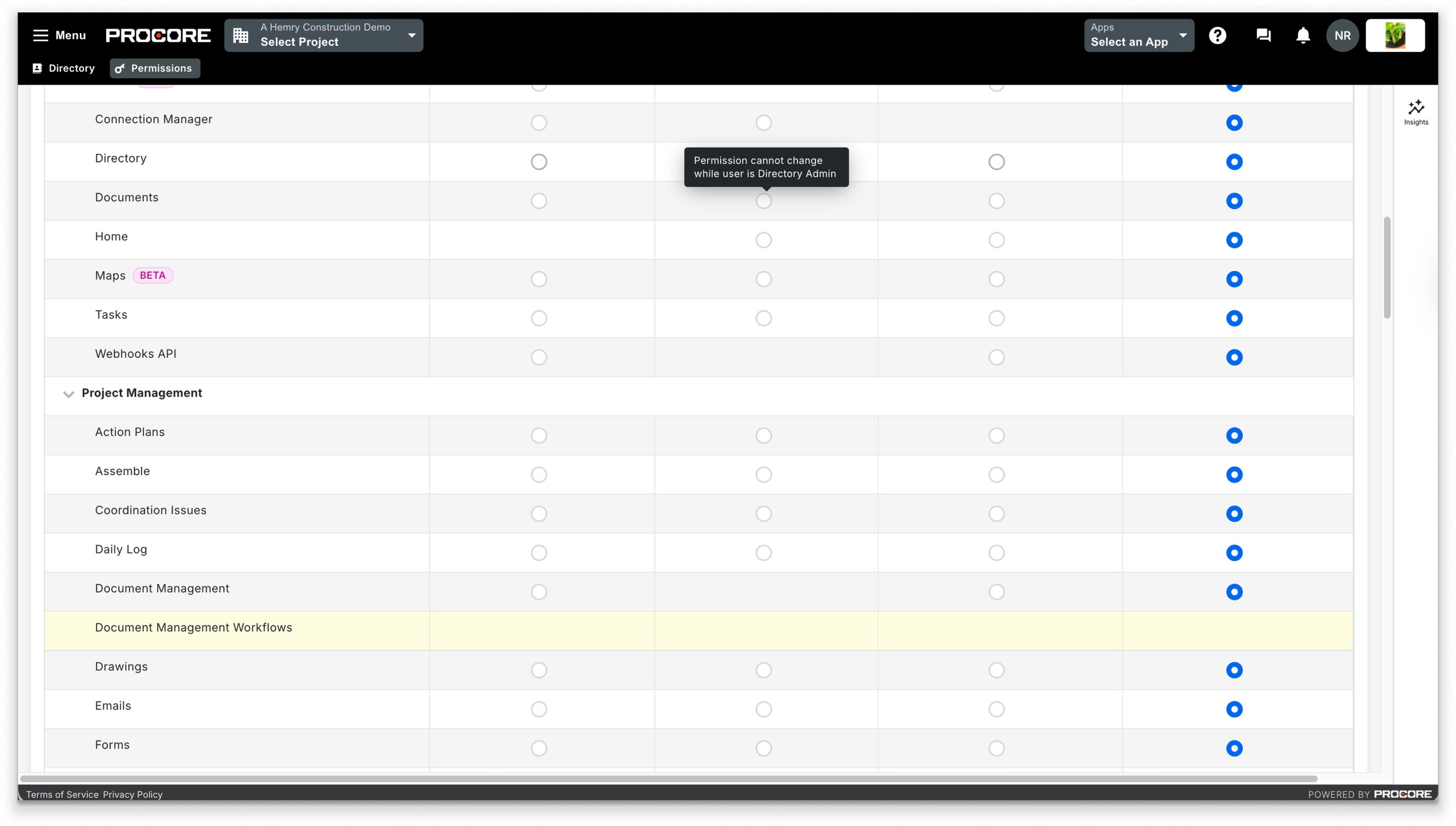
Old permissions experience
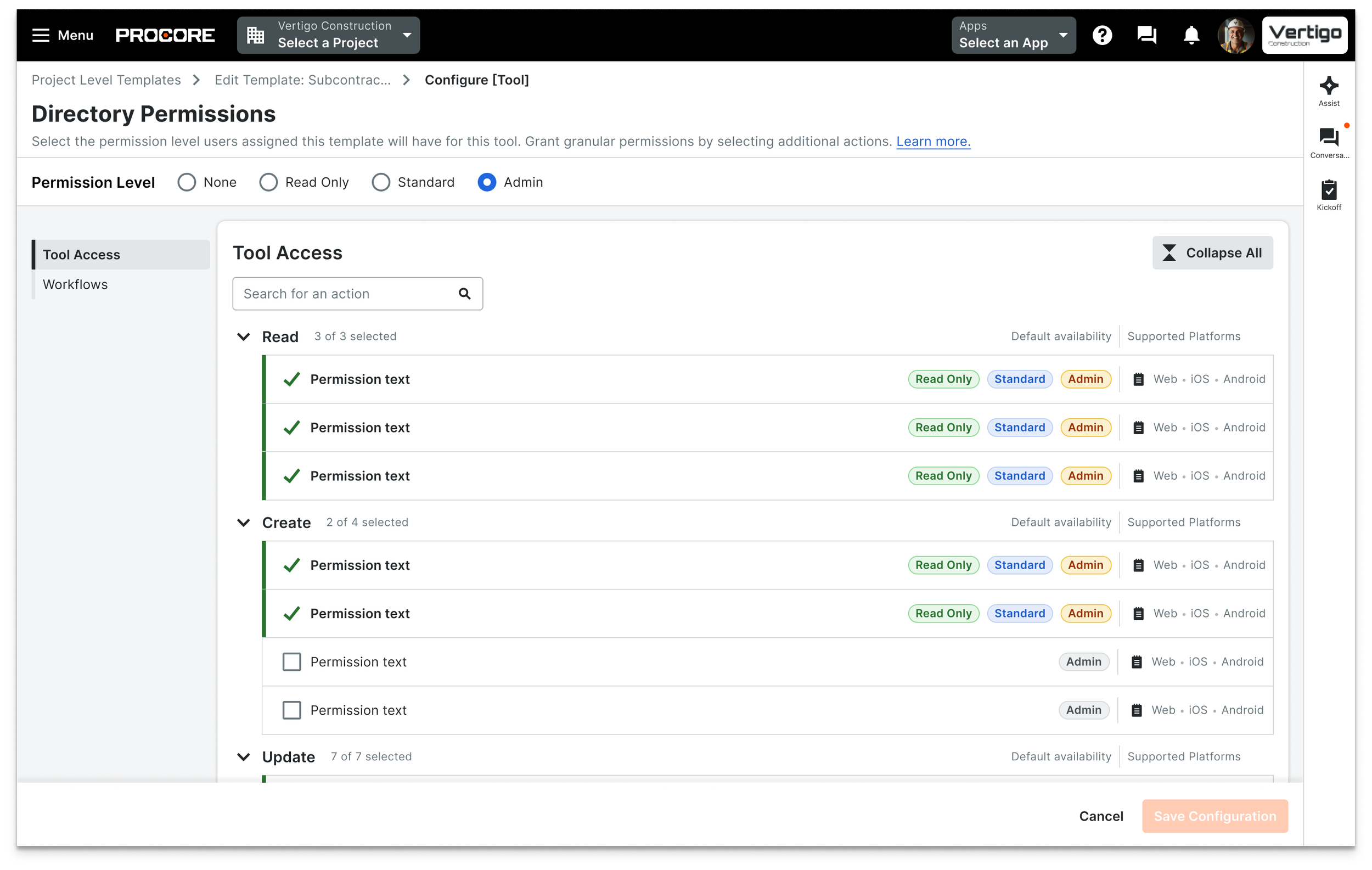
New permissions experience
Content Examples
Empty States
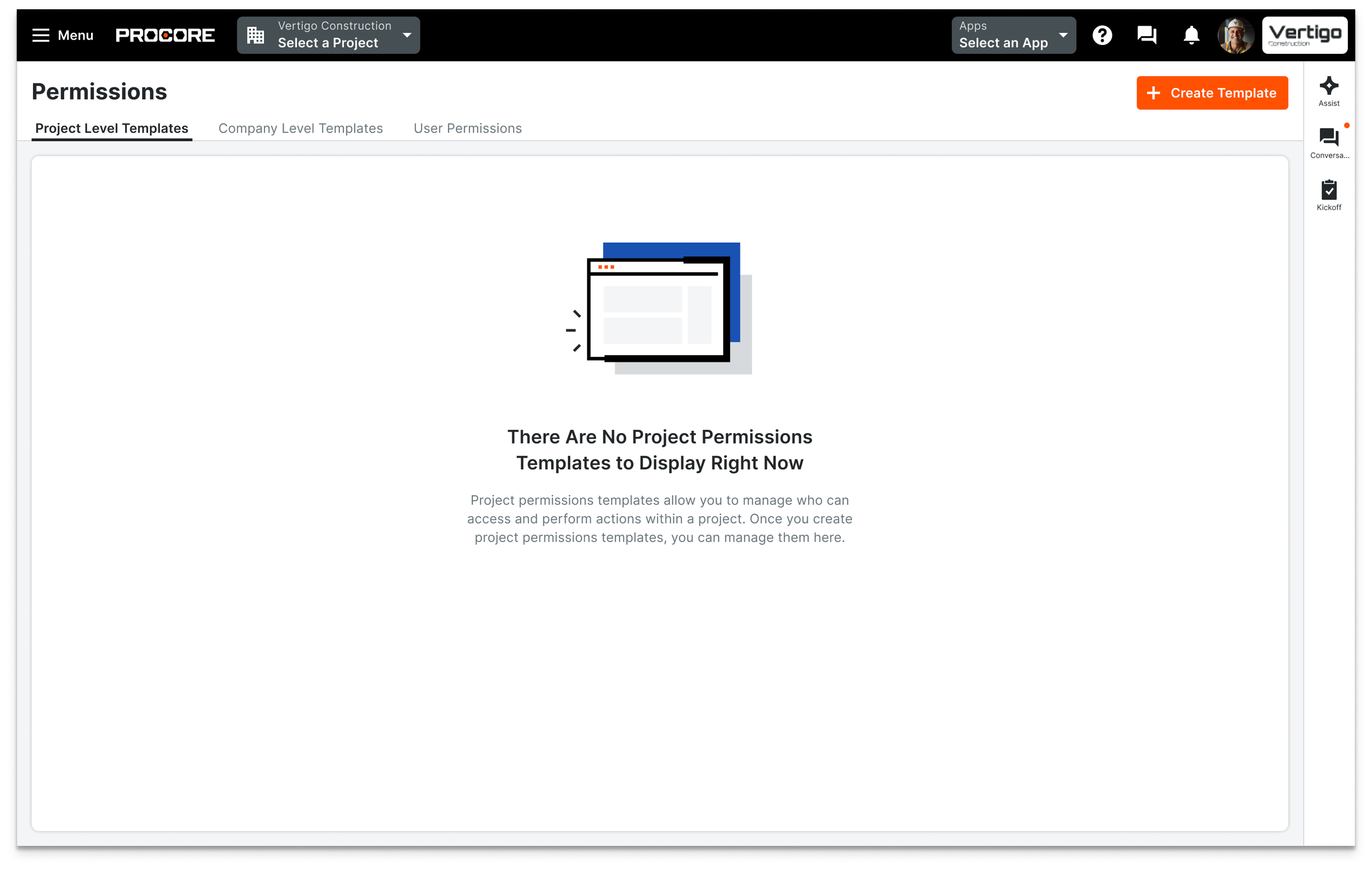
Instead of seeing a blank table when navigating to the Permissions tool for the first time, I designed empty state copy that educates users about the tool and briefly describes what happens next.
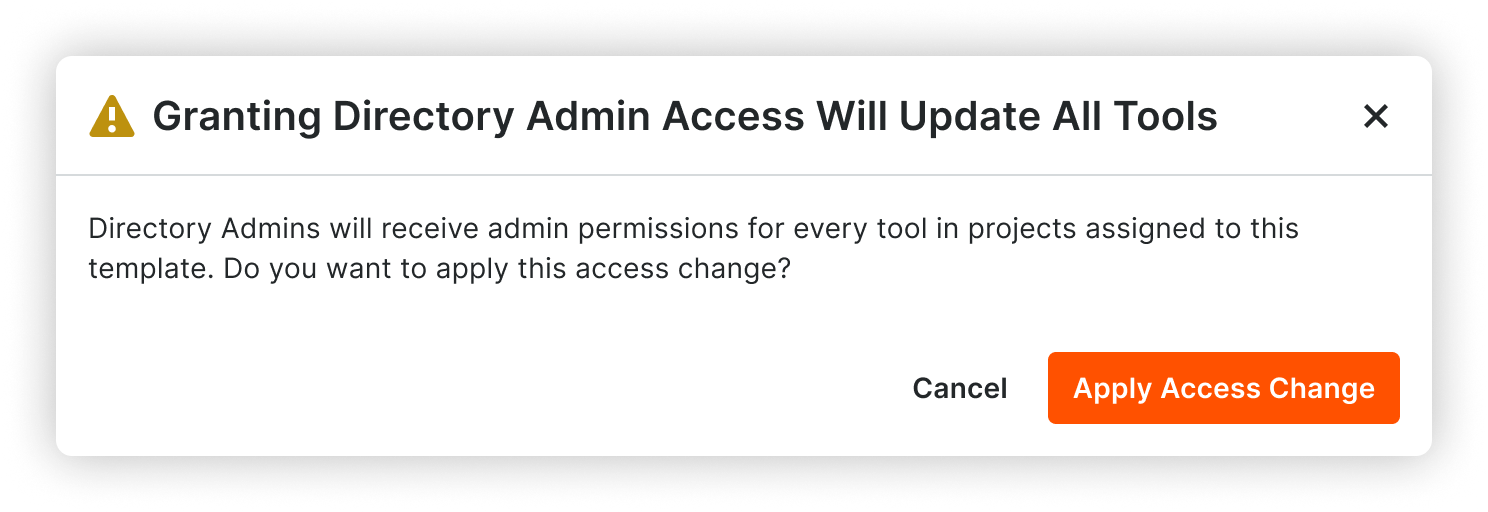
Before: Explanation of change was not clear enough. Button label a bit confusing and could be shorter.
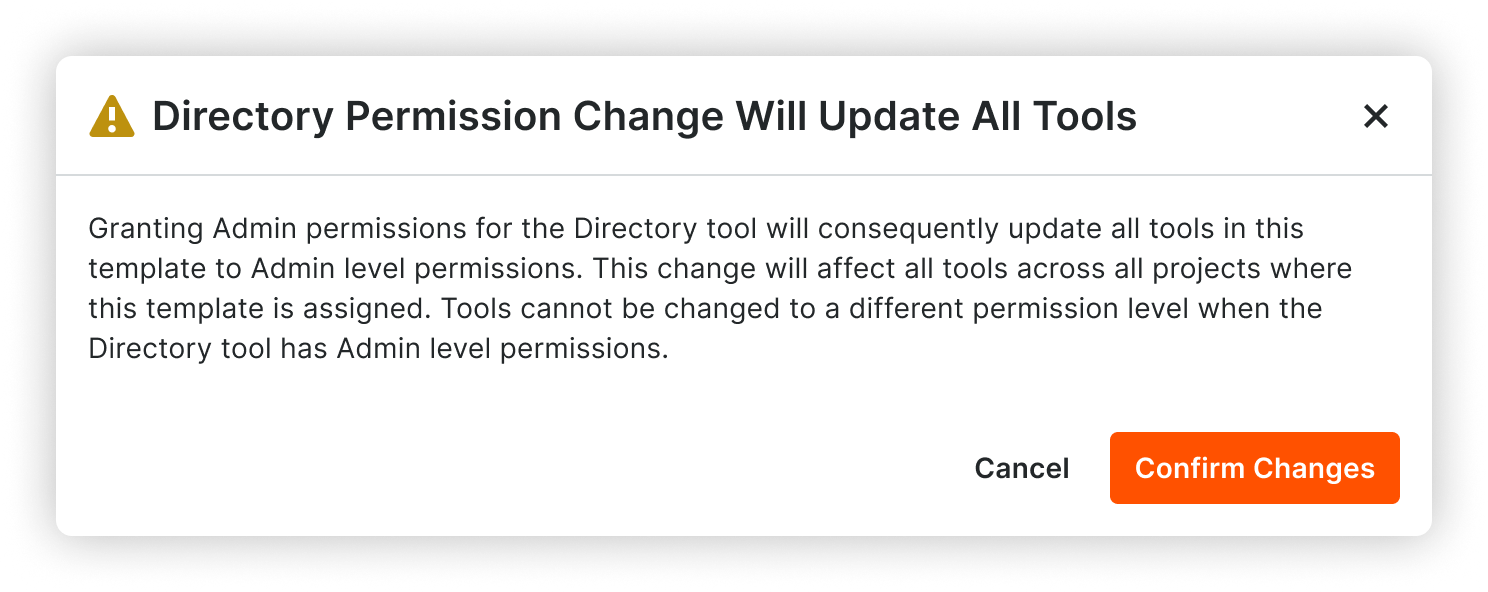
After: More details about what will happen. Swapped “access change” for “permission change.” Shortened button label.
Confirmation Modals
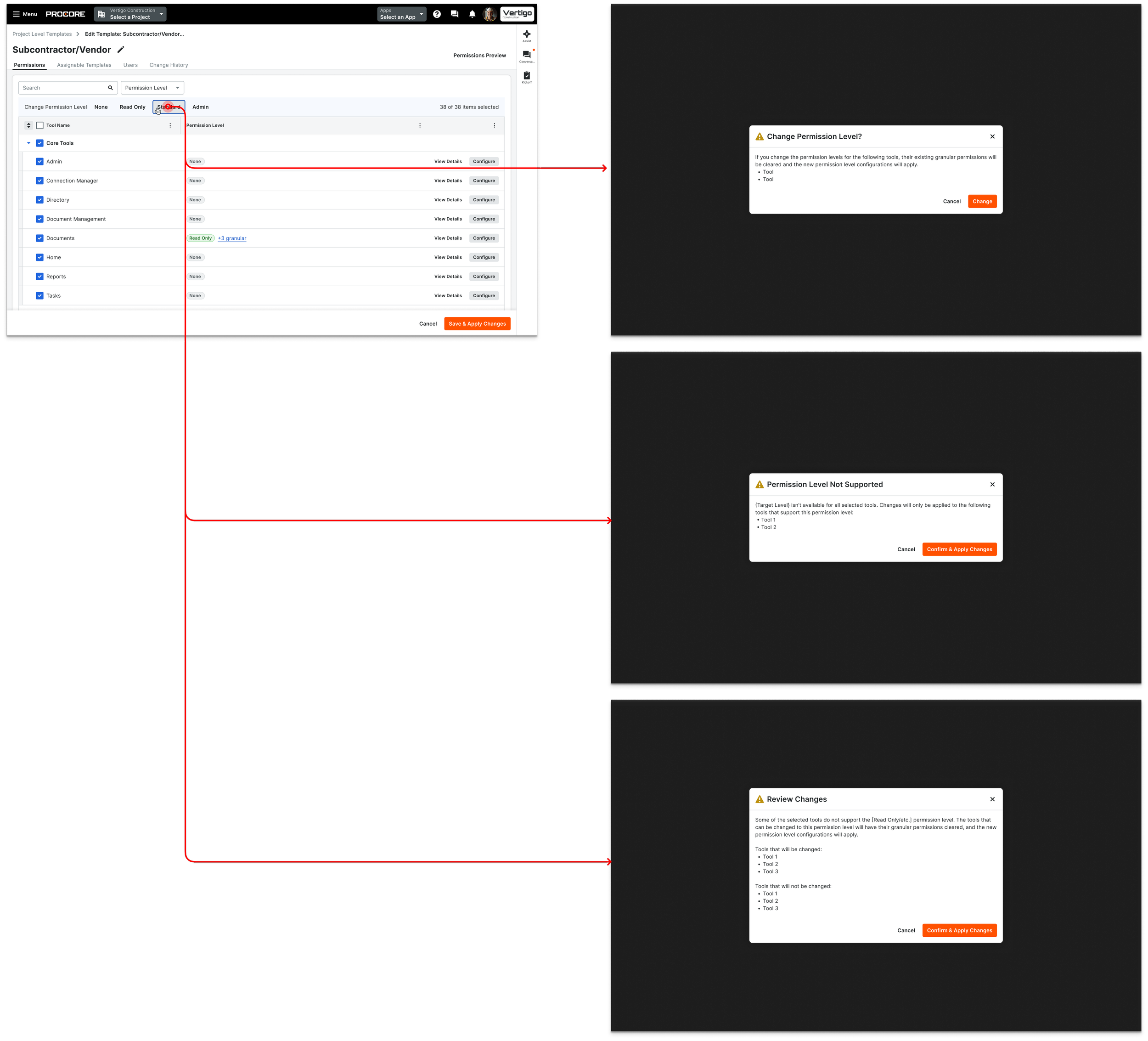
Making changes to users’ permissions could potentially have a big impact on a project, so it was important that we carefully explained to users exactly what would happen as a result of making that change.
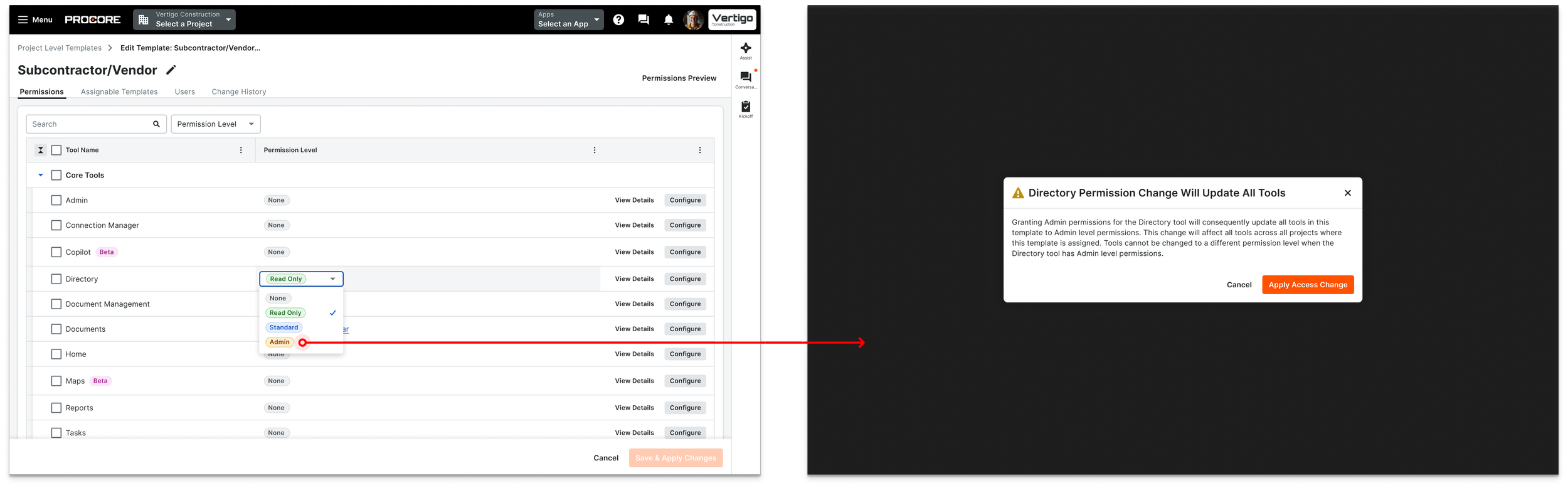
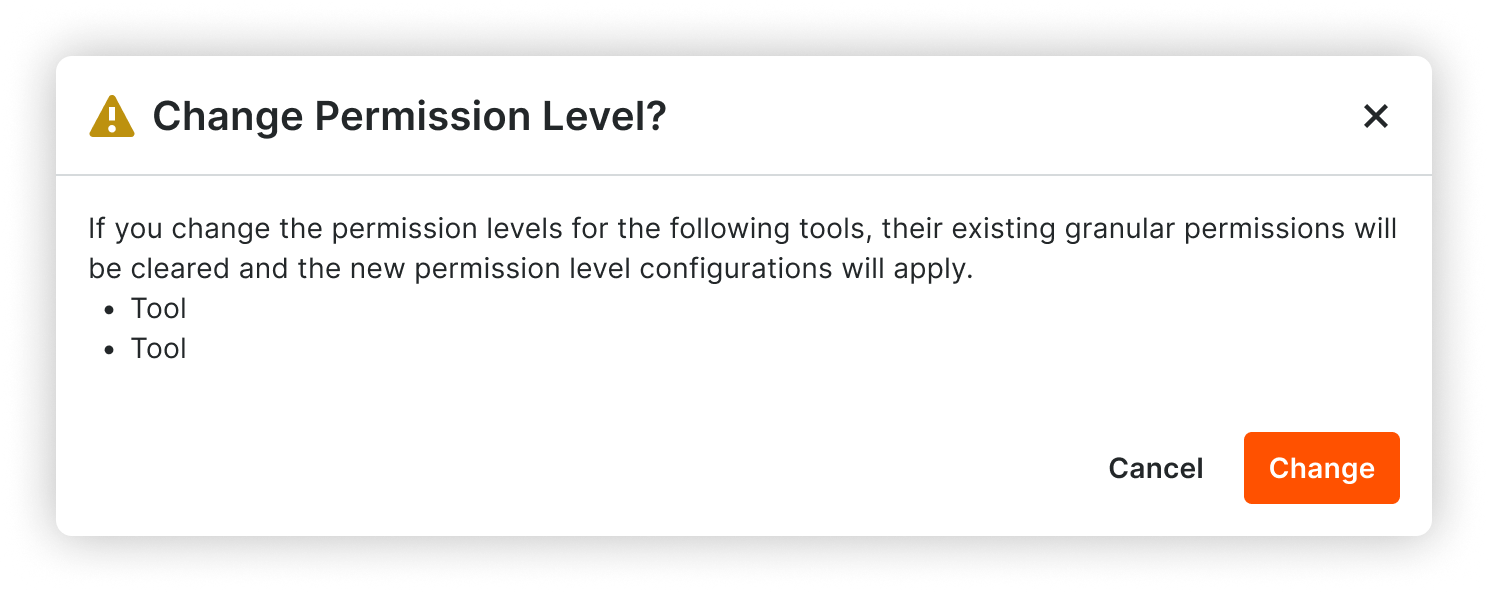
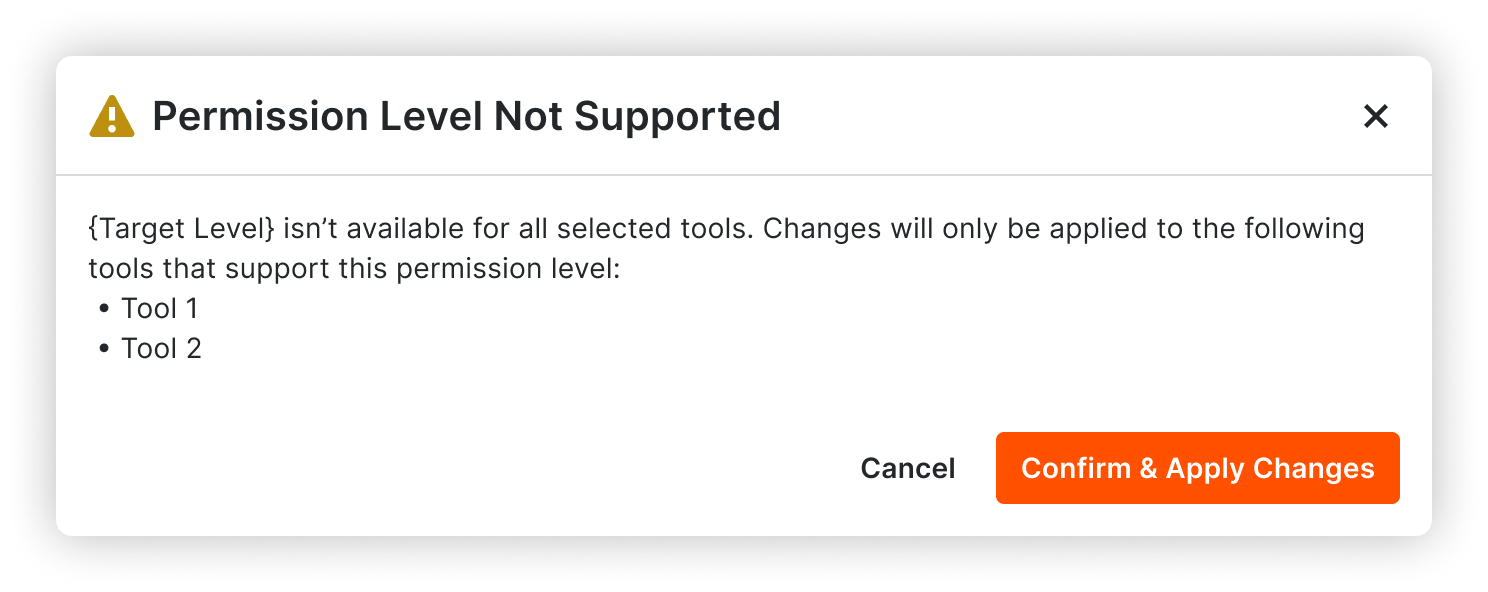
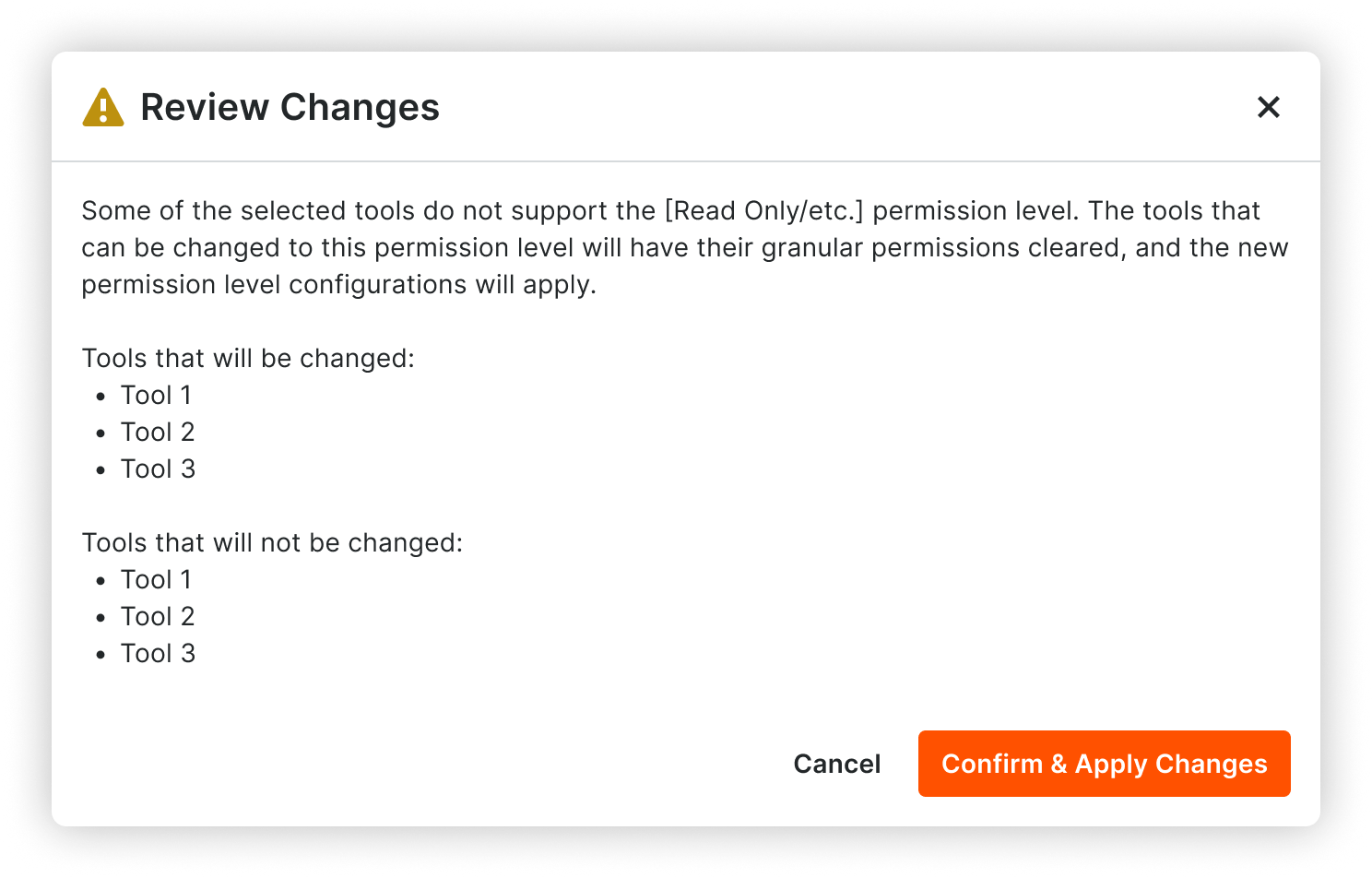
When a user is editing a permissions template, they may be shown a warning or information modal. Examples include:
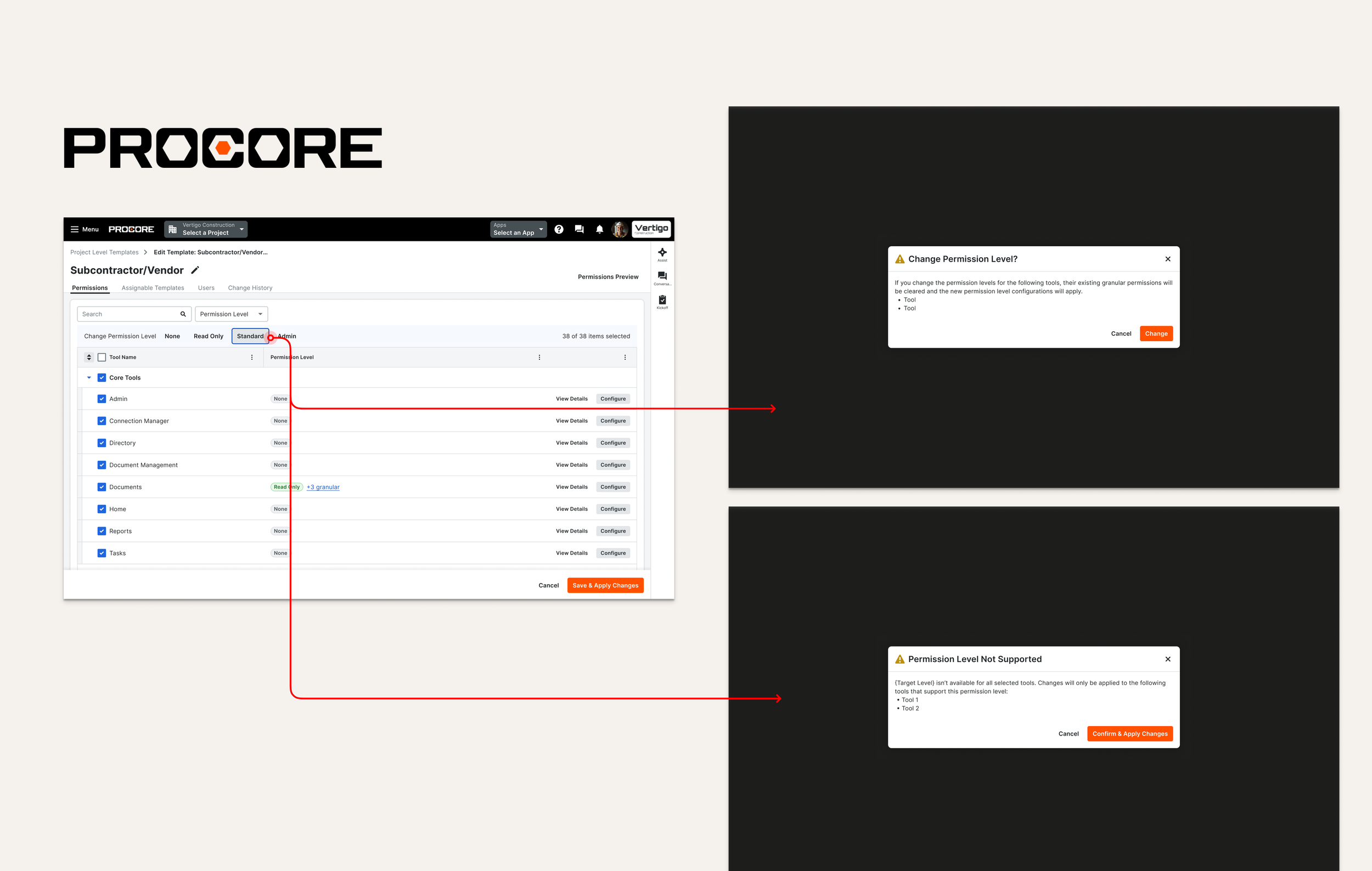
Warning modal informing the user that granular permissions will be cleared upon changing
Information modal informing the user that some tools do not support the selected permission level
Warning + information modal informing the user of a combination of the two scenarios above